
Powerful Task Management in Telegram
Create detailed tasks with everything your team needs - types, priorities, deadlines, flexible repeats, actionable sub-tasks for granular tracking, rich formatting, file attachments, and a built-in discussion chat.
Create detailed tasks by voice
Tap the microphone in the task form and describe the outcome, details, and context naturally. Built-in AI structures what you said into a title and description and recognizes a due date from clear phrases such as “finish it by Friday” or “the report needs to be ready by September 16.” Choose the project, assignee, and other fields as needed.
You can dictate more details into an already filled form or ask for a correction by voice. AI merges the new information with the current title and description without losing important content unless you explicitly ask to remove or replace it.
The feature is included at no extra charge in active Free and PRO workspaces and uses AI tokens from the plan allowance.
Task Types & Priorities
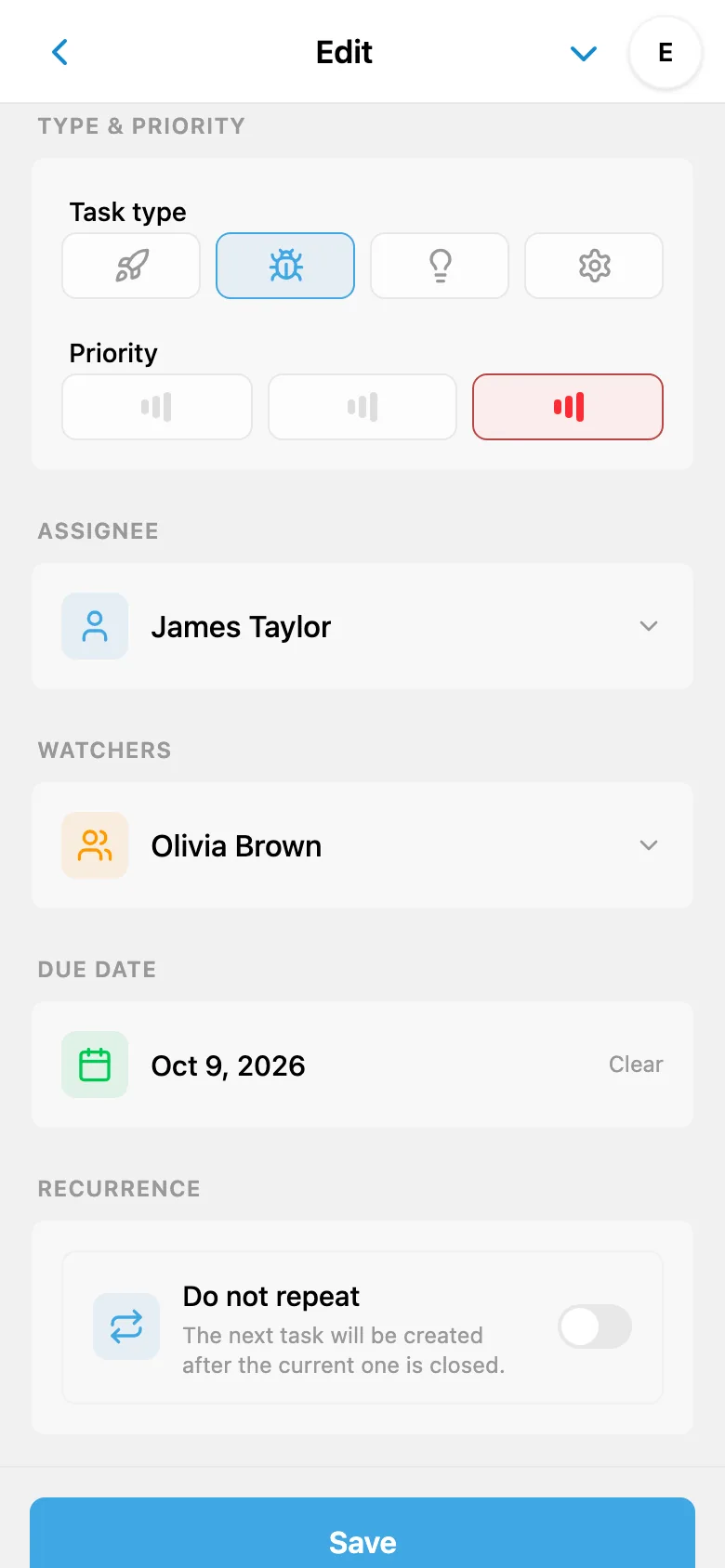
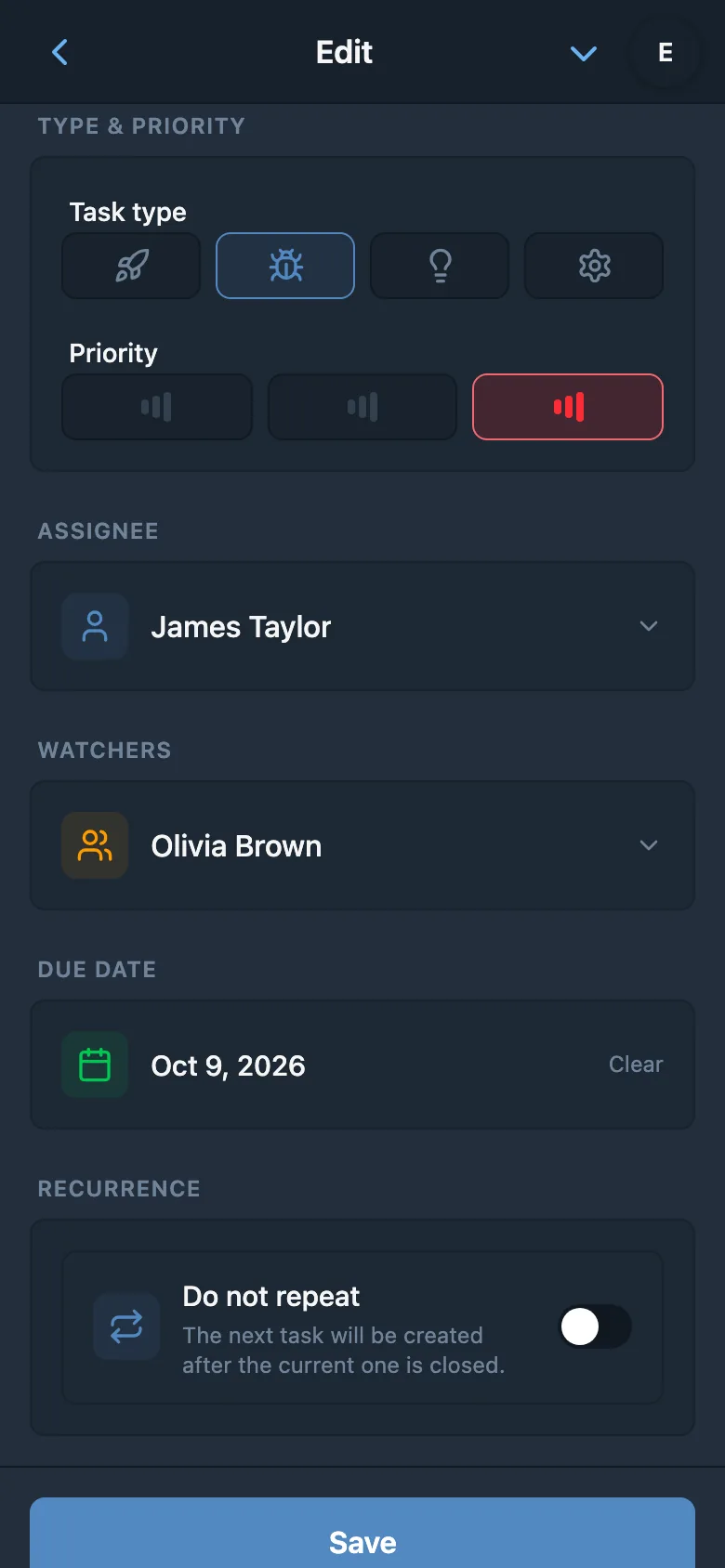
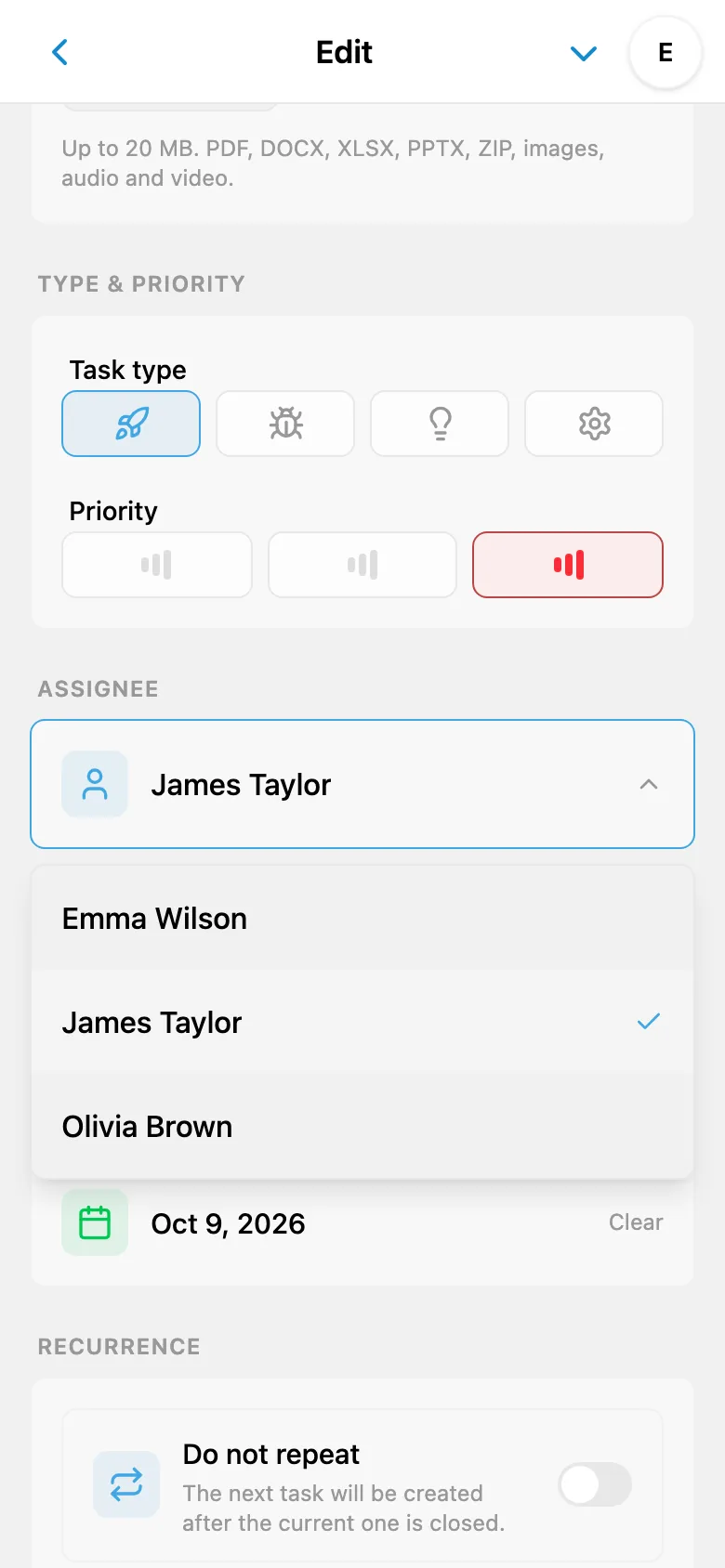
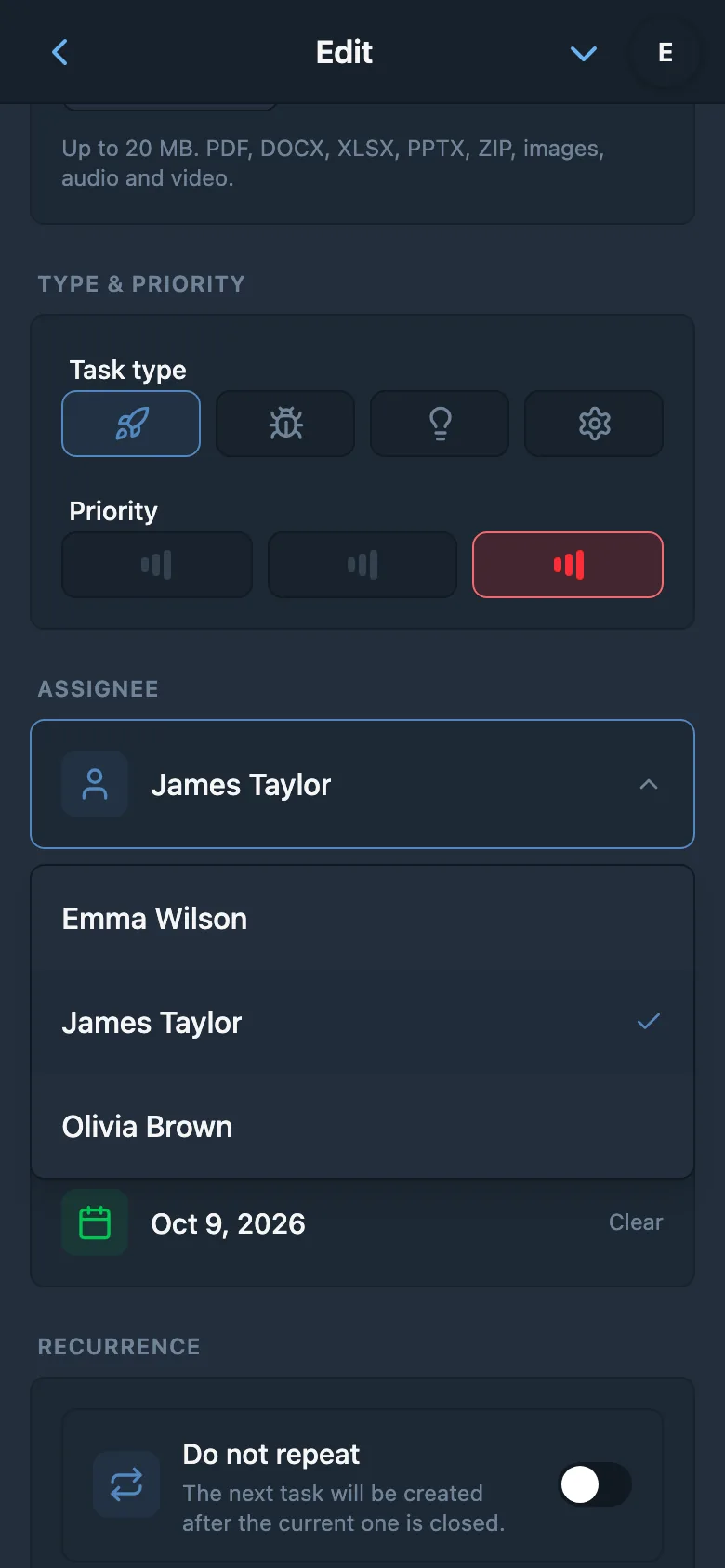
Every project has different kinds of work. iTasks gives you four default task types out of the box - Feature for new functionality, Bug for defects, Improvement for enhancements to existing features, and Tech for infrastructure and technical tasks. Each type is visually distinct, making it easy to scan your task list and understand what needs attention.
Owners and admins can change their names and icons and add up to 2 extra types, for a total of 6. How to customize task types.
Pair task types with three priority levels - High, Normal, and Low - and optional deadlines to keep your team focused on what matters most. High-priority bugs rise to the top, while low-priority improvements wait their turn. Deadlines ensure nothing slips through the cracks, with a Telegram reminder sent to the assignee on the deadline day.
- Feature - new functionality and capabilities
- Bug - defects and issues to fix
- Improvement - enhancements to existing features
- Tech - infrastructure and technical debt
Recurring Tasks for Regular Work
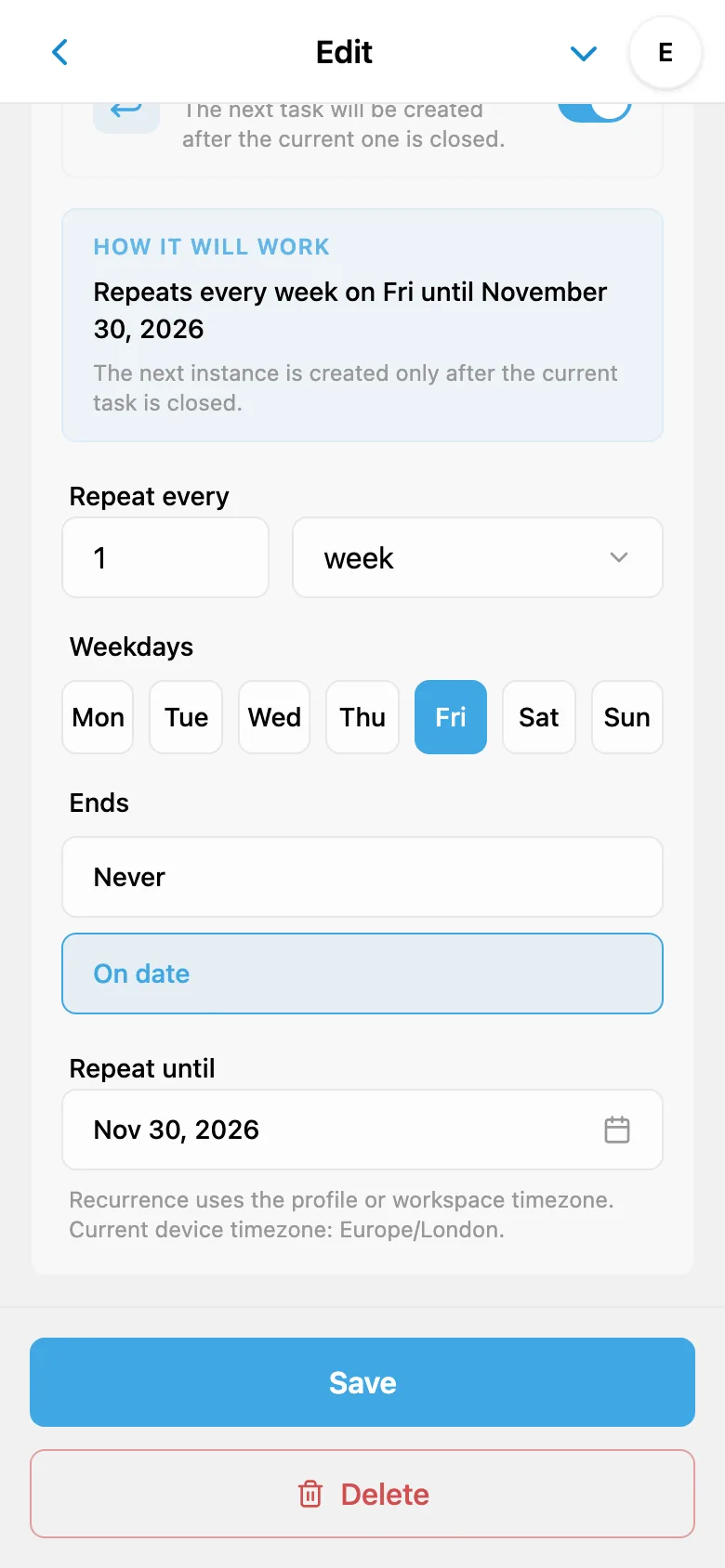
When the same task comes back on a schedule, you do not need to copy it manually every time. In iTasks, you can enable recurrence for a root task and match it to the way your team actually works: daily checks, weekly reports, monthly period close, or yearly routine actions.
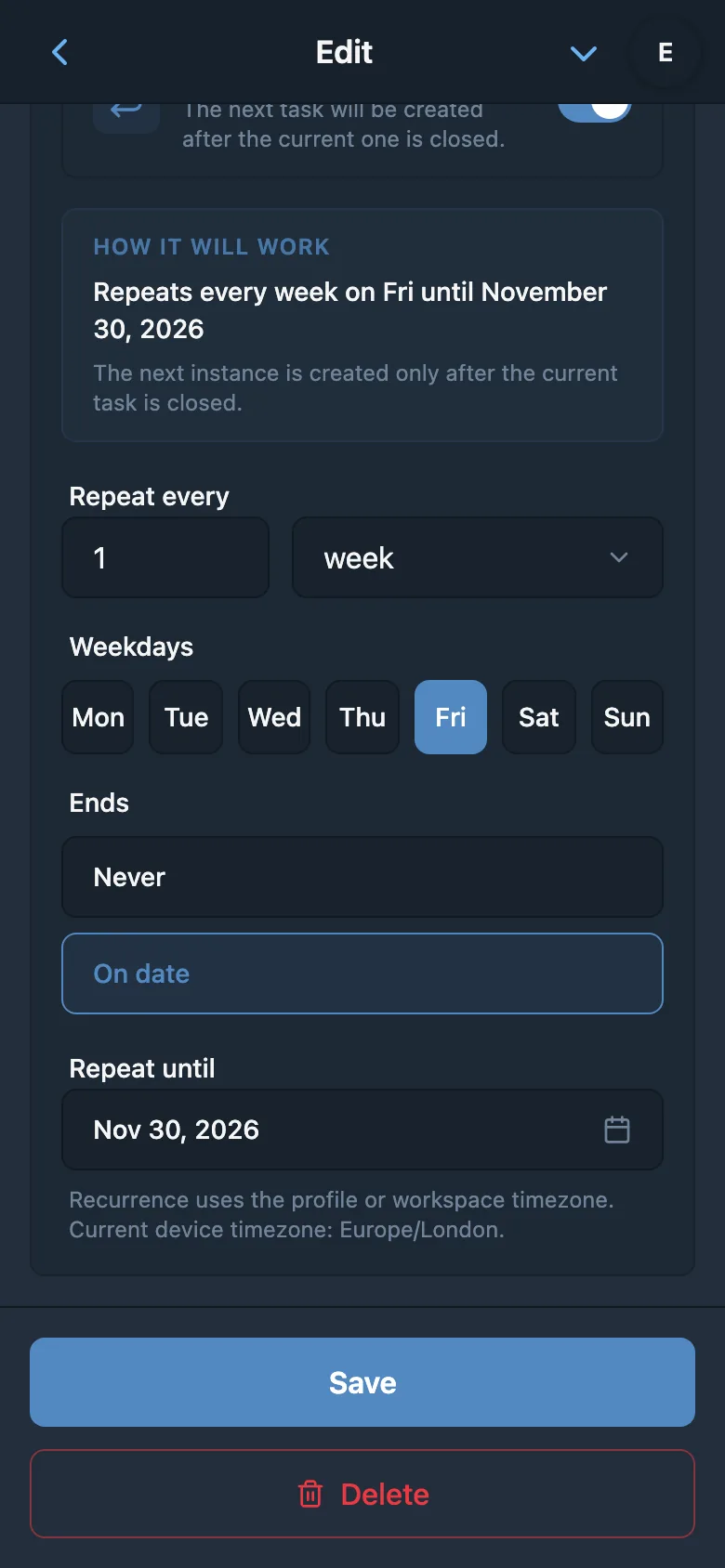
Recurring tasks support flexible configurations: daily, weekly, monthly, and yearly rules, custom repeat intervals, selected weekdays, a specific day of month, or a date in the year. If the series should only run for a limited period, set an end date for the recurrence so new task instances do not continue forever. The task still lives inside the project with its assignee, discussion, Telegram notifications, and workflow context.
Days and Weeks
Use them for daily checklists, recurring syncs, and tasks that should appear on selected weekdays.
Months and Years
Use them for reports, payments, period close, scheduled checks, and work tied to a month day or yearly date.
Repeat Interval
Set patterns like every 2 weeks, every 3 months, and other rhythms that match how your team plans.
End Date
Limit a series to the end of a project, season, or contract so it stops creating future tasks automatically.
Sprints & Project Backlog
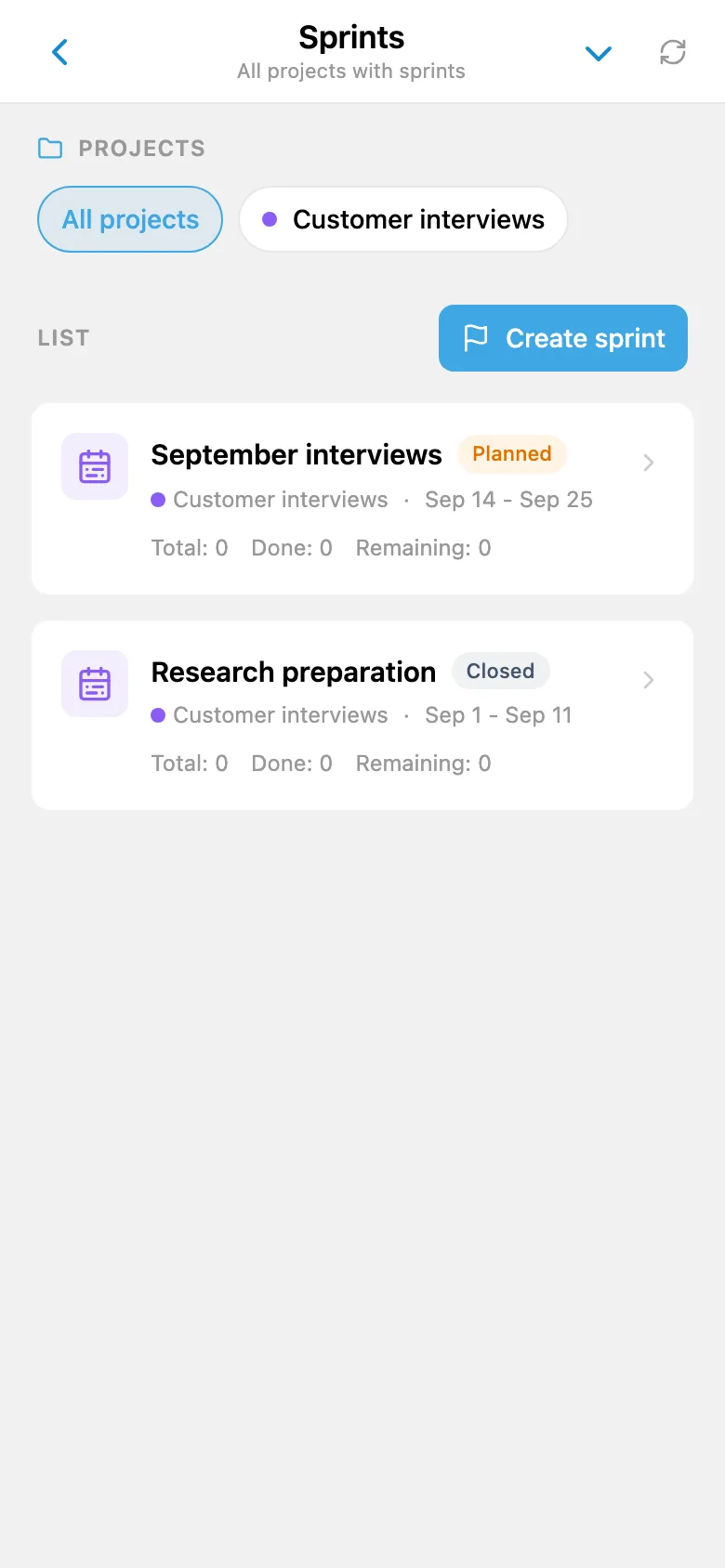
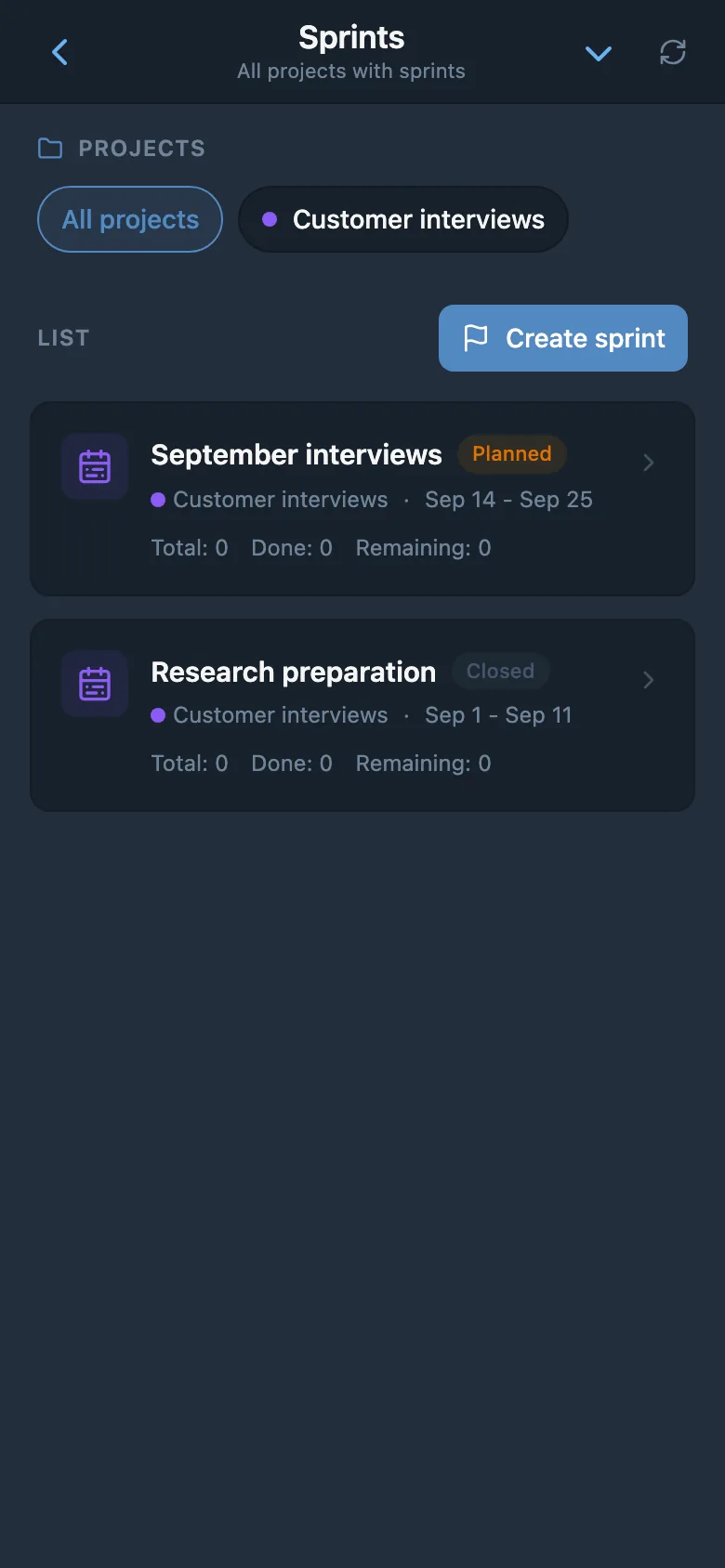
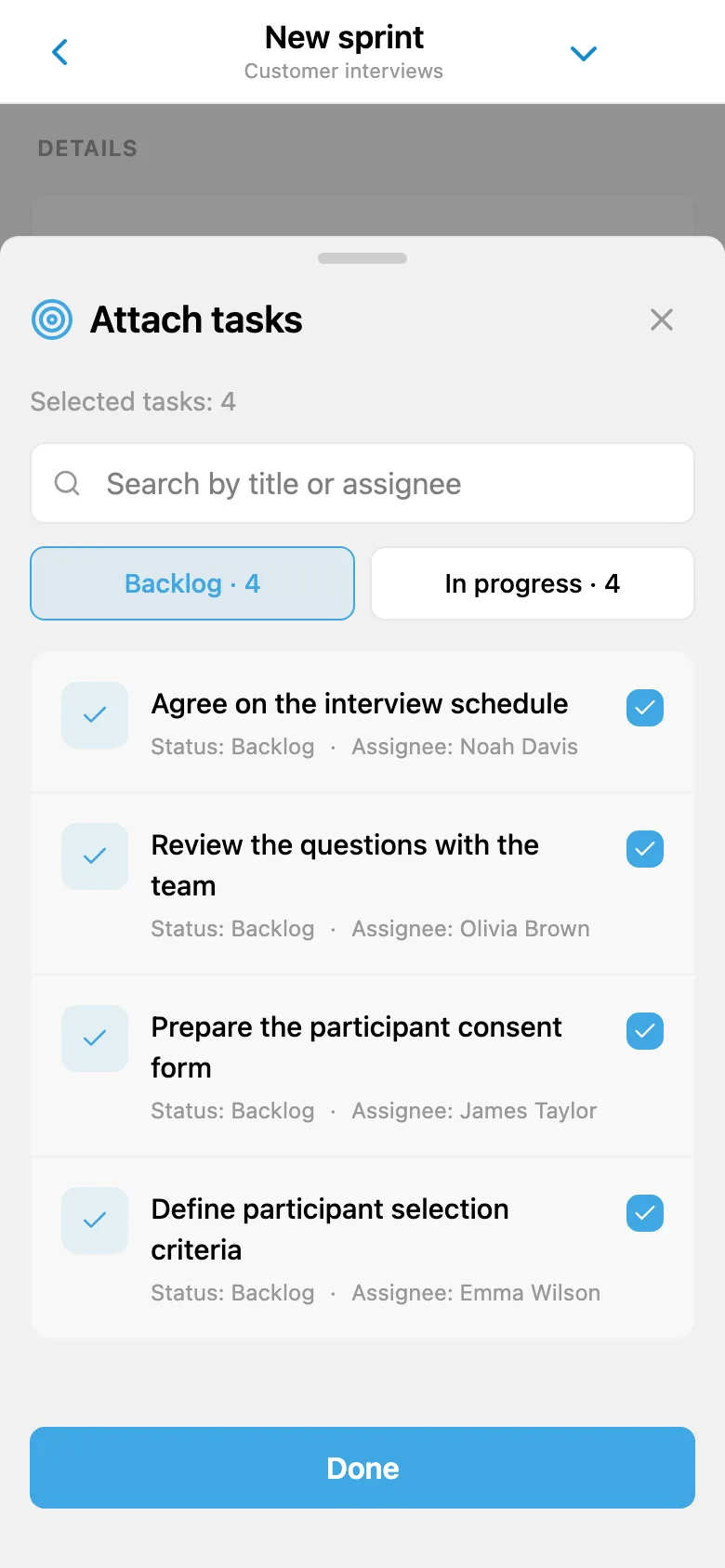
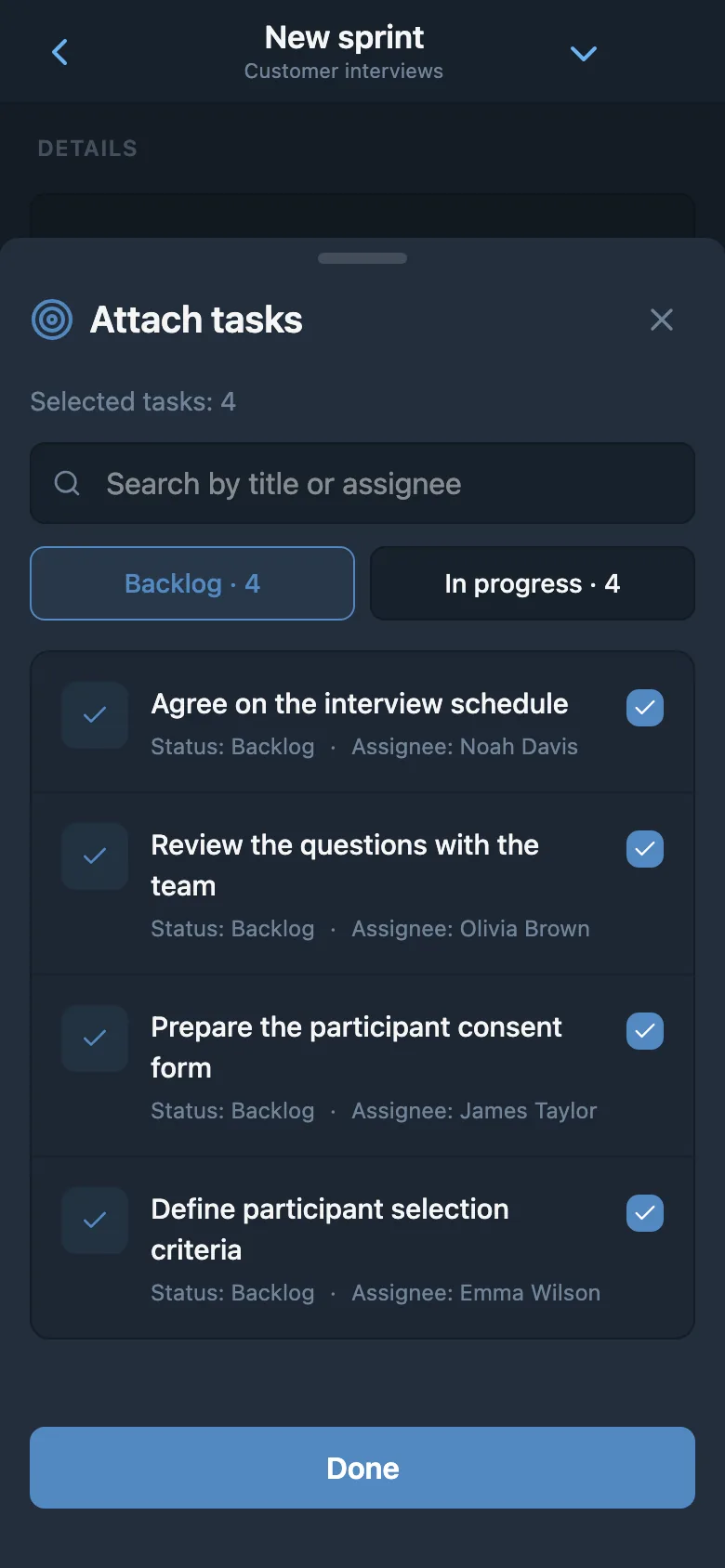
As projects grow, a single flat task list stops being enough. Teams often need both a shared project backlog for everything that belongs to the product and a clear scope for the next cycle of work. That is why iTasks can now support sprints as an additional planning layer inside a project. You can collect tasks into a sprint, see what the team committed to for the current iteration, and keep the rest of the work organized in the broader backlog.
This is especially useful for product teams, agencies, and software development teams that prefer to work in short cycles, whether that means weekly planning, two-week iterations, or release-based delivery. At the same time, sprint support in iTasks stays fully optional. Teams that prefer a continuous flow can keep working exactly as before, while teams that need more structure can add sprint-based planning without changing the core project setup.
The result is a cleaner workflow: a shared backlog for the full project scope and a focused sprint for what is actively planned right now. It helps teams separate long-term ideas from current commitments, keep priorities visible, and manage the entire planning cycle directly inside Telegram.
Flexible Project Architecture
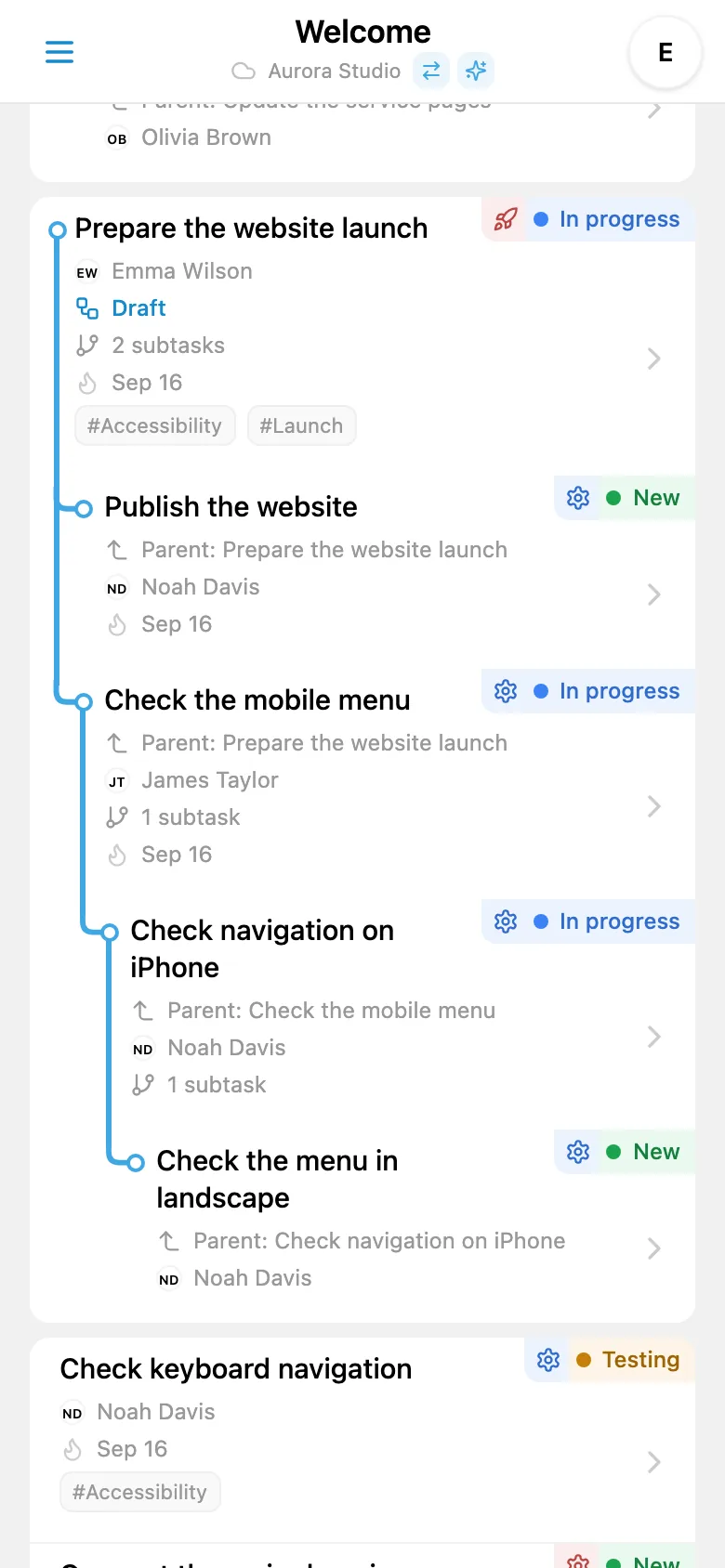
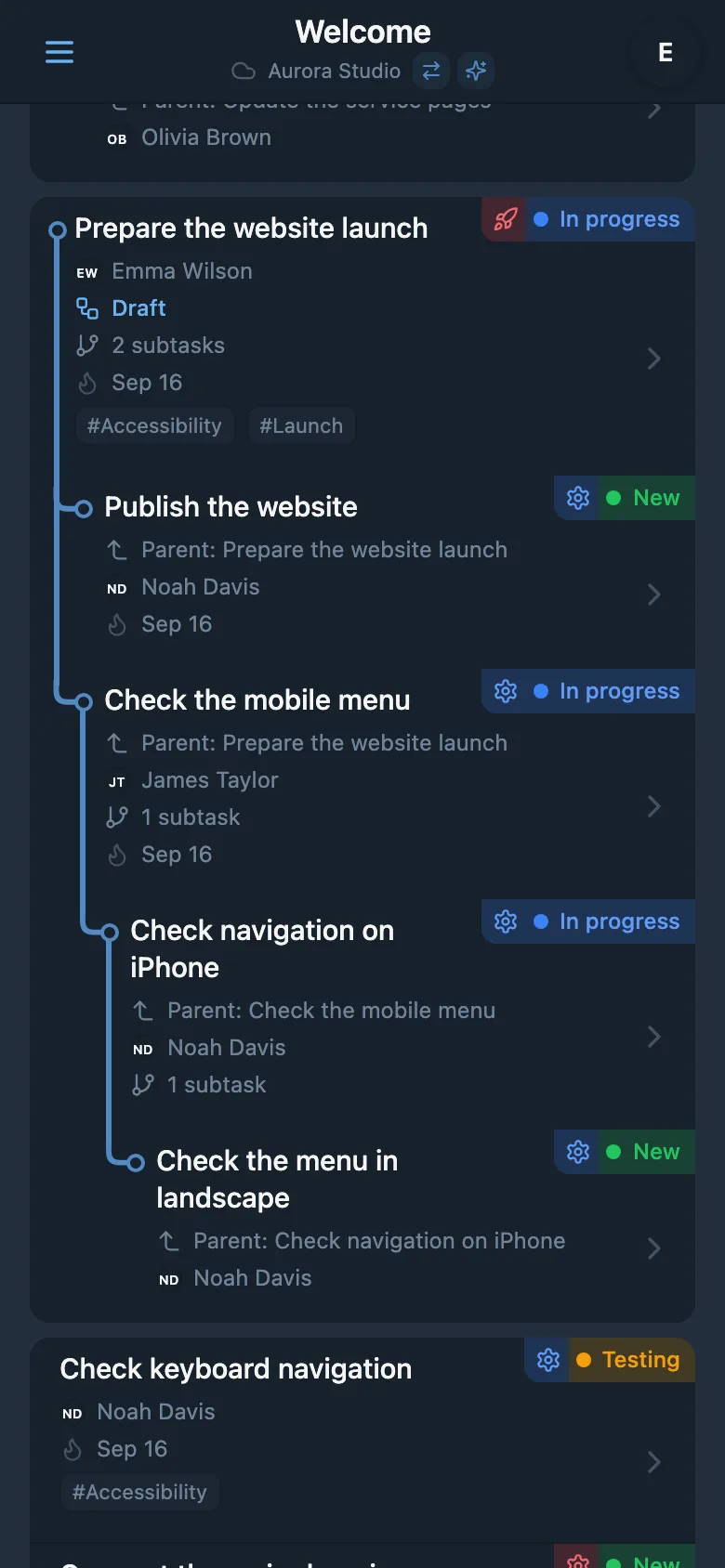
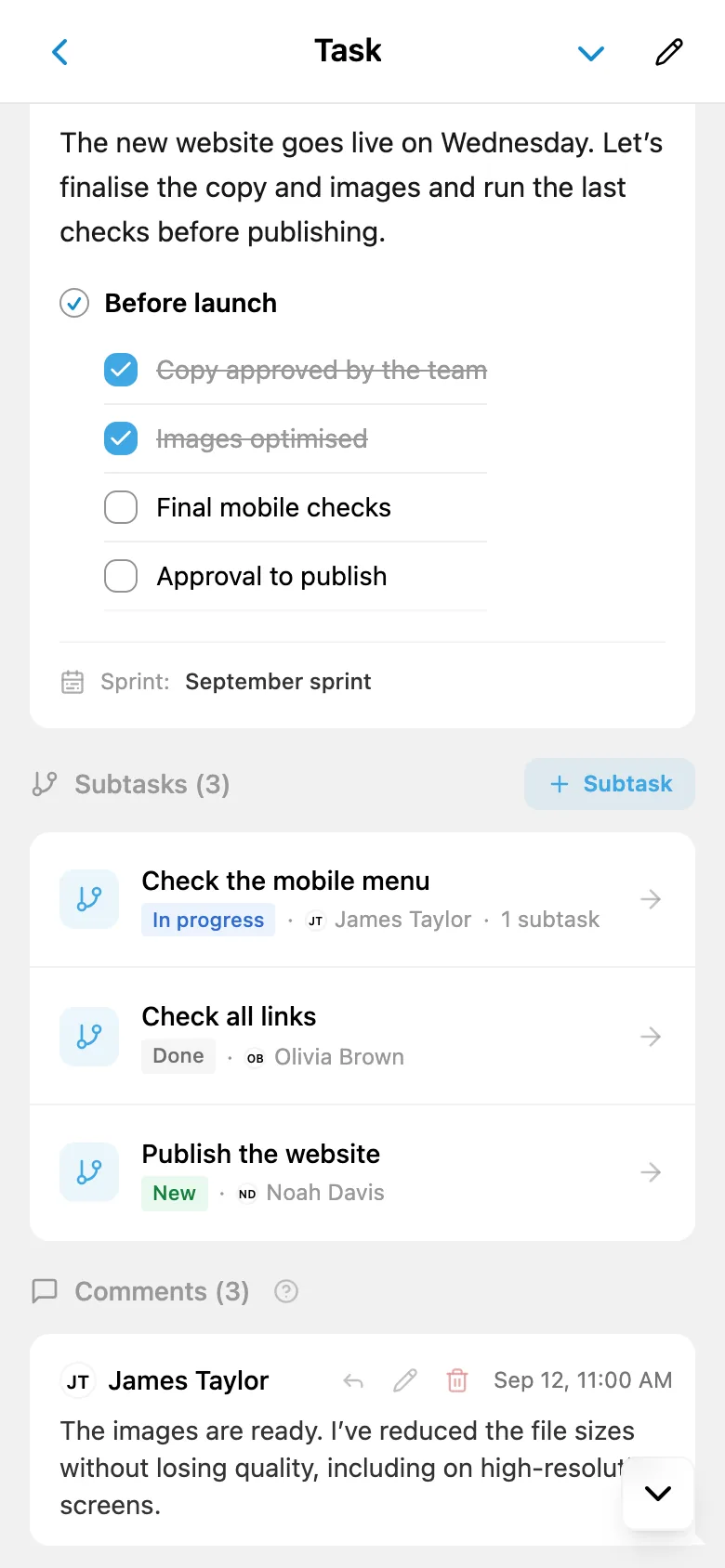
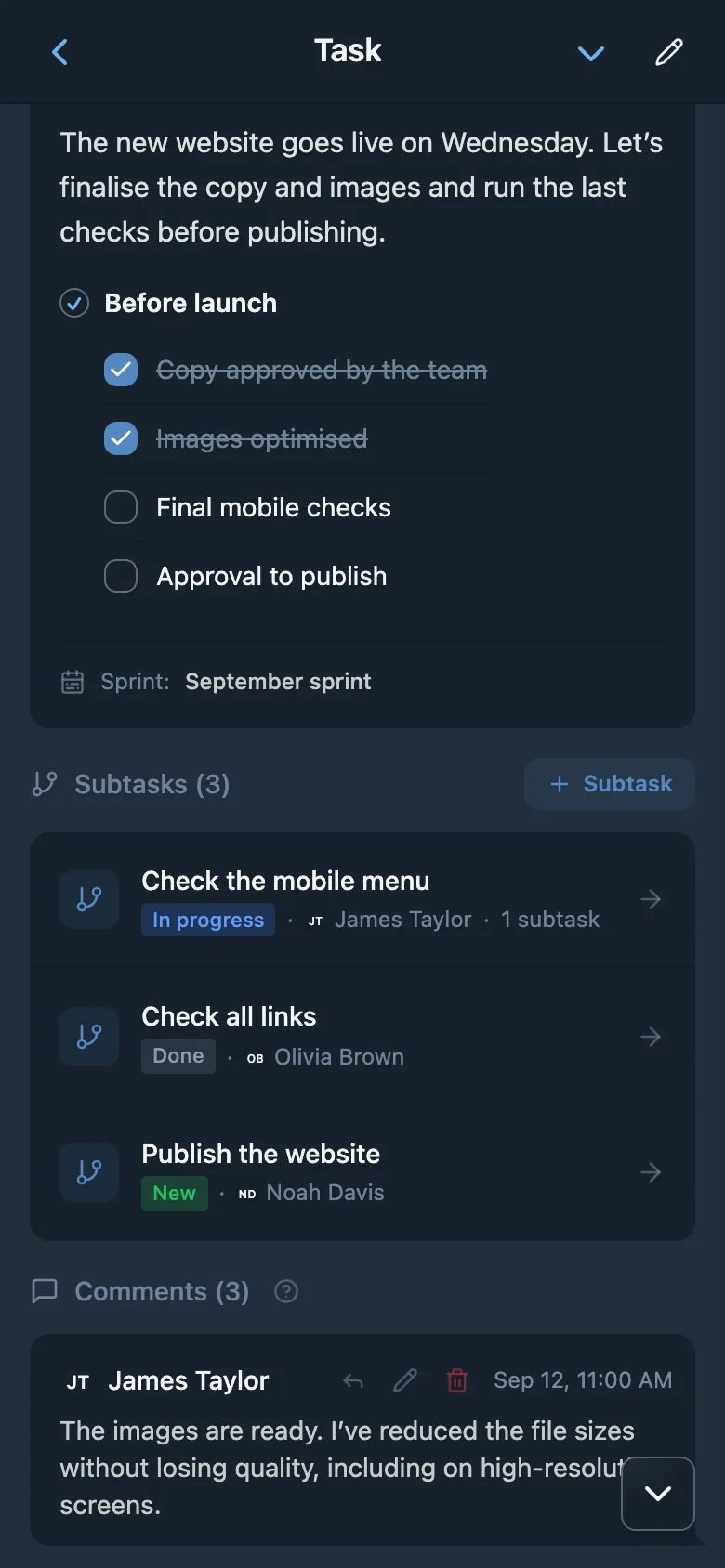
A real project rarely fits into a flat list. Break larger tasks into sub-tasks (up to 4 levels deep) so work is easier to hand off and you can track progress part by part. A single feature can split backend, frontend, and QA into separate units, each with its own assignee, status, and deadline.
The dedicated Tree View shows the full project structure at a glance: parent tasks branch into children, which can branch into their own sub-tasks. Your team can see dependencies, jump to the right level, and plan sprints without losing sight of the big picture.
- Epic breakdown - turn large work into clear, actionable steps
- Tree view - a dedicated visualization of project architecture
- Granular tracking - each sub-task has its own type, priority, assignee, status, and discussion
- Parent tracking - navigate up and down the hierarchy in one tap
Rich Text Editor
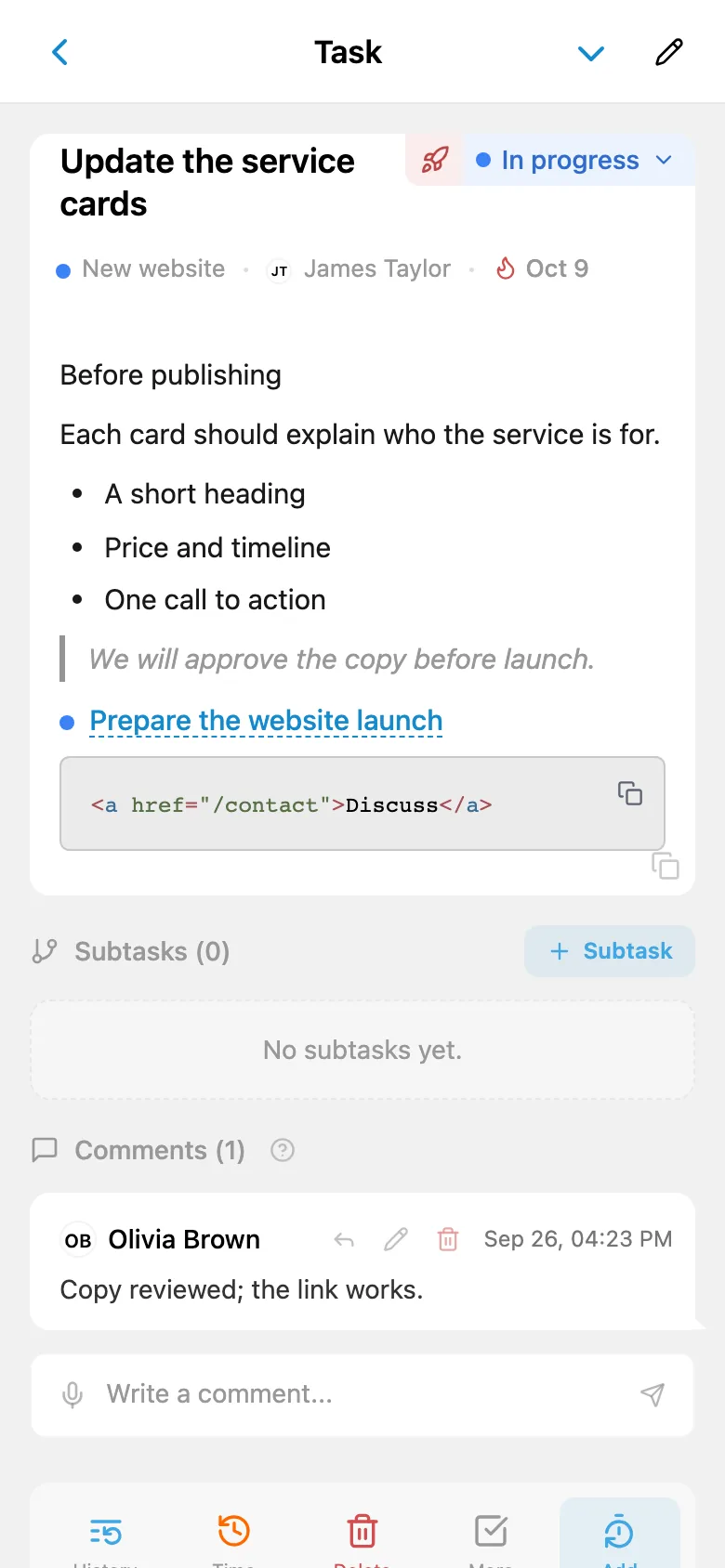
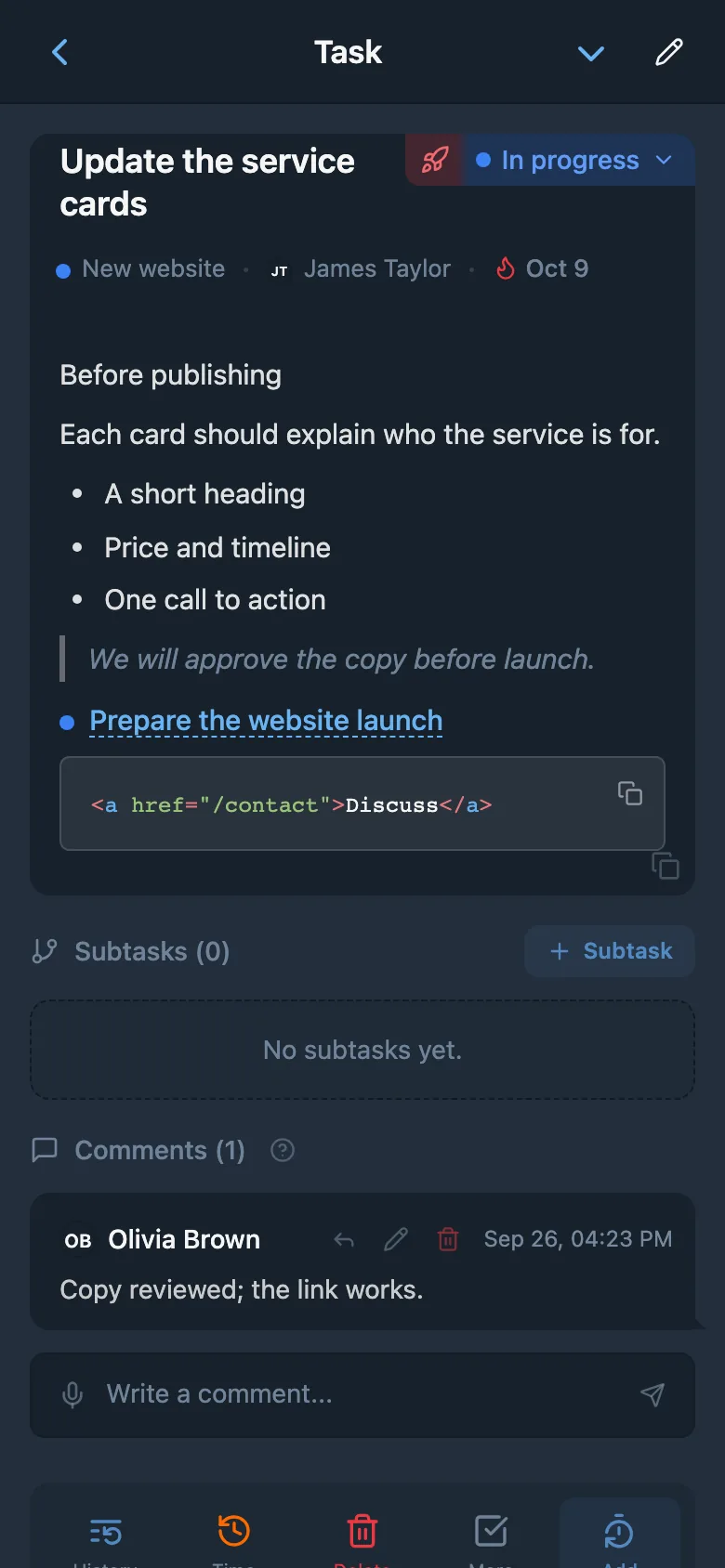
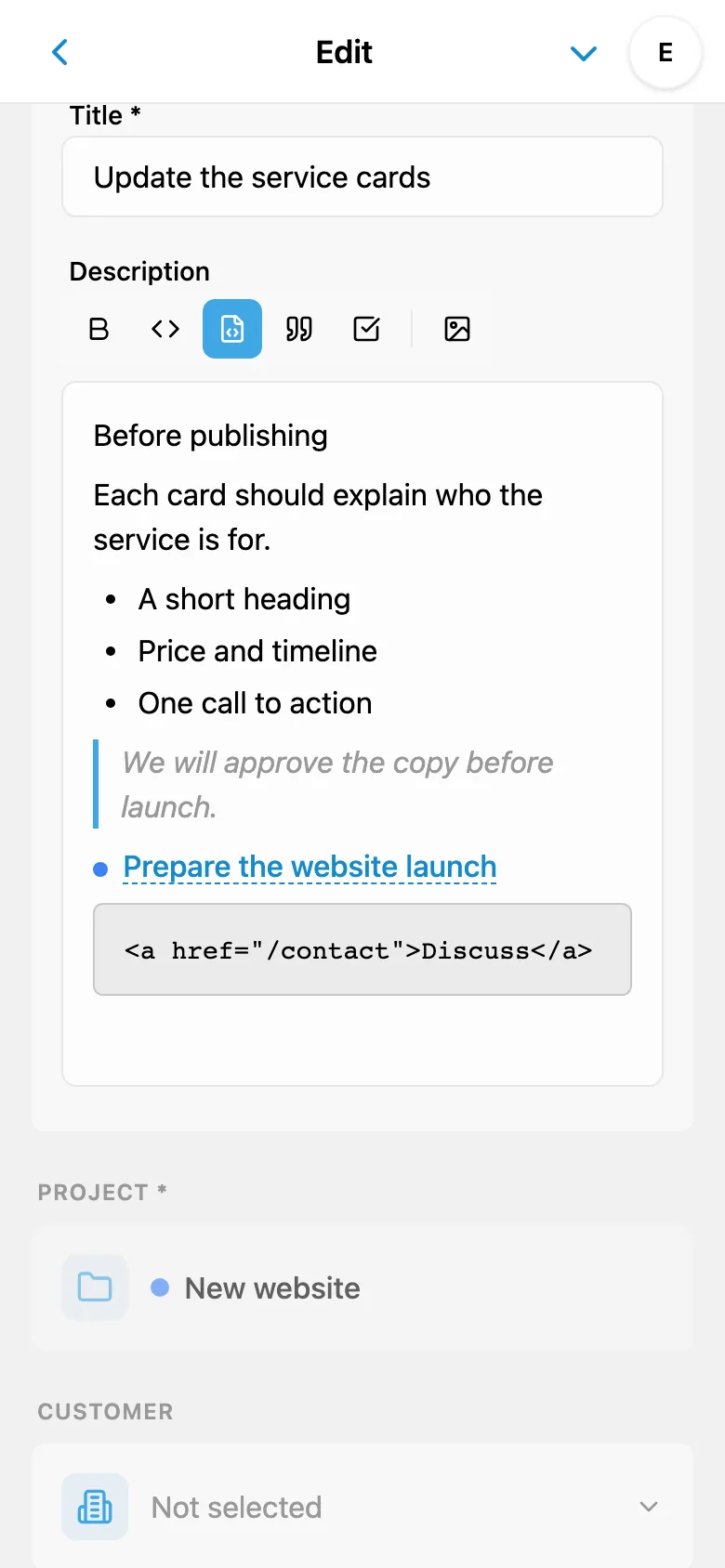
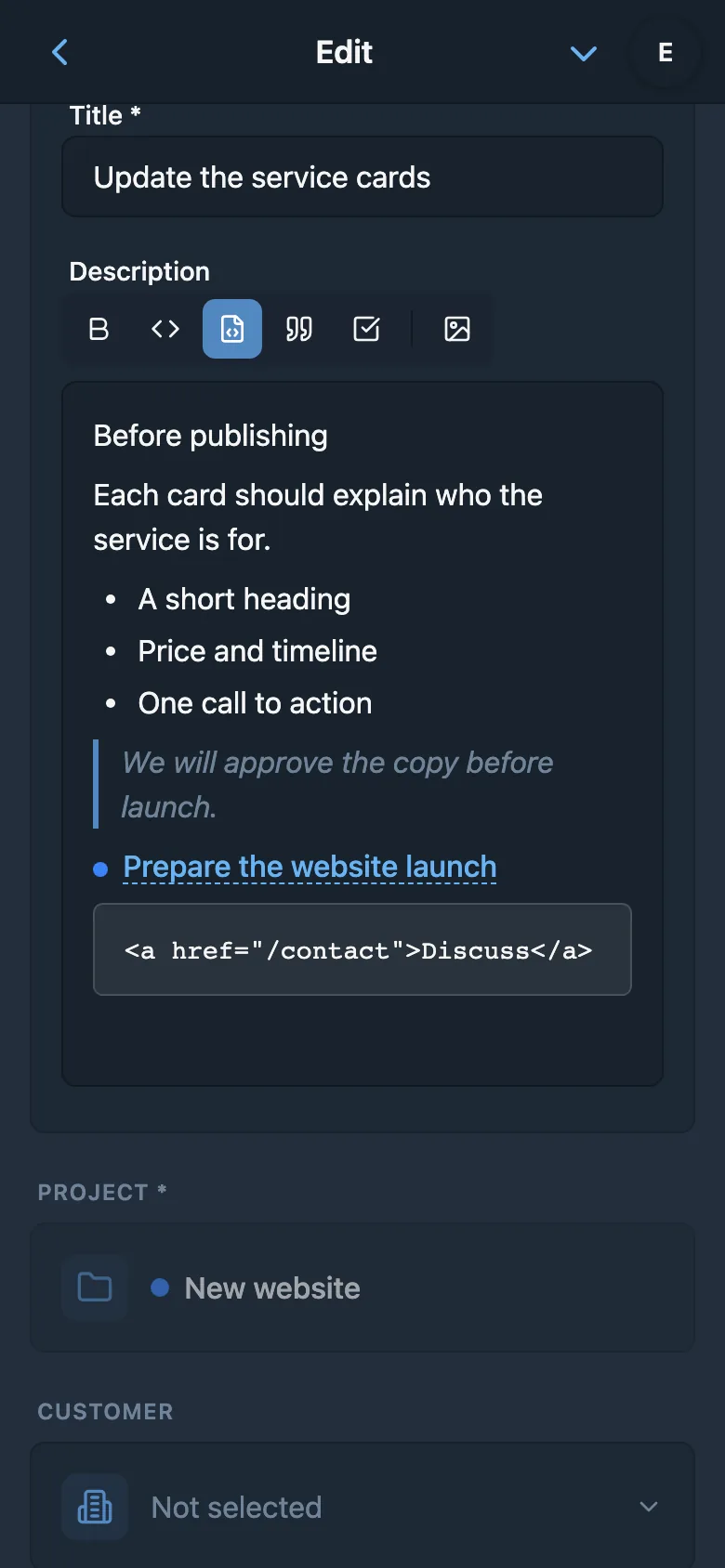
Not every description fits into a single line of plain text. iTasks's rich text editor supports bold, italic, lists, and headings, so you can lay a task out clearly. Whether you're writing a detailed feature spec or a quick bug report, the editor stays out of your way.
For development teams, code blocks with syntax highlighting are essential. Paste code snippets in JavaScript, Python, TypeScript, Go, and many other languages - iTasks renders them with proper highlighting, making technical tasks readable. Need to share API responses? The JSON pretty-view automatically formats raw JSON into a clean, collapsible structure that is easy to navigate.
File Attachments & Images
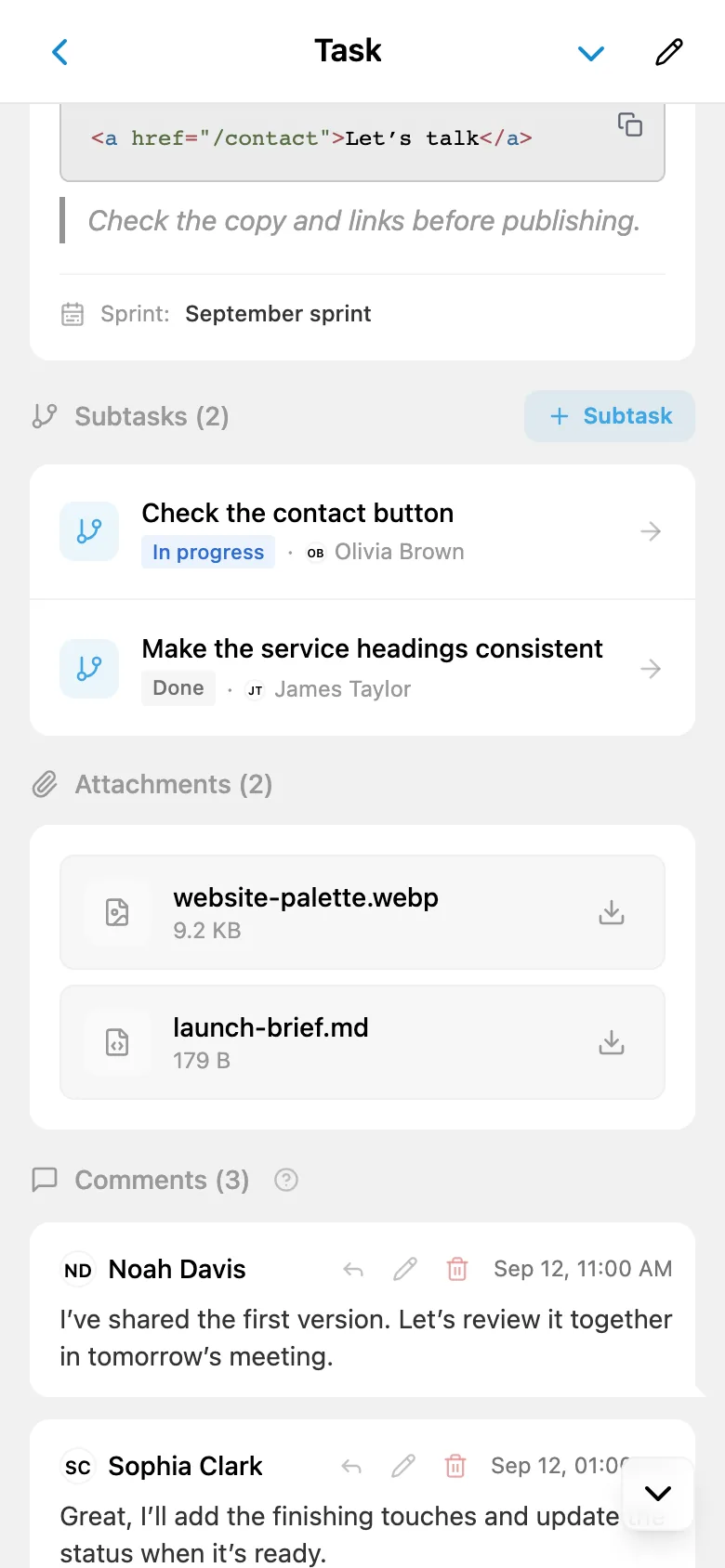
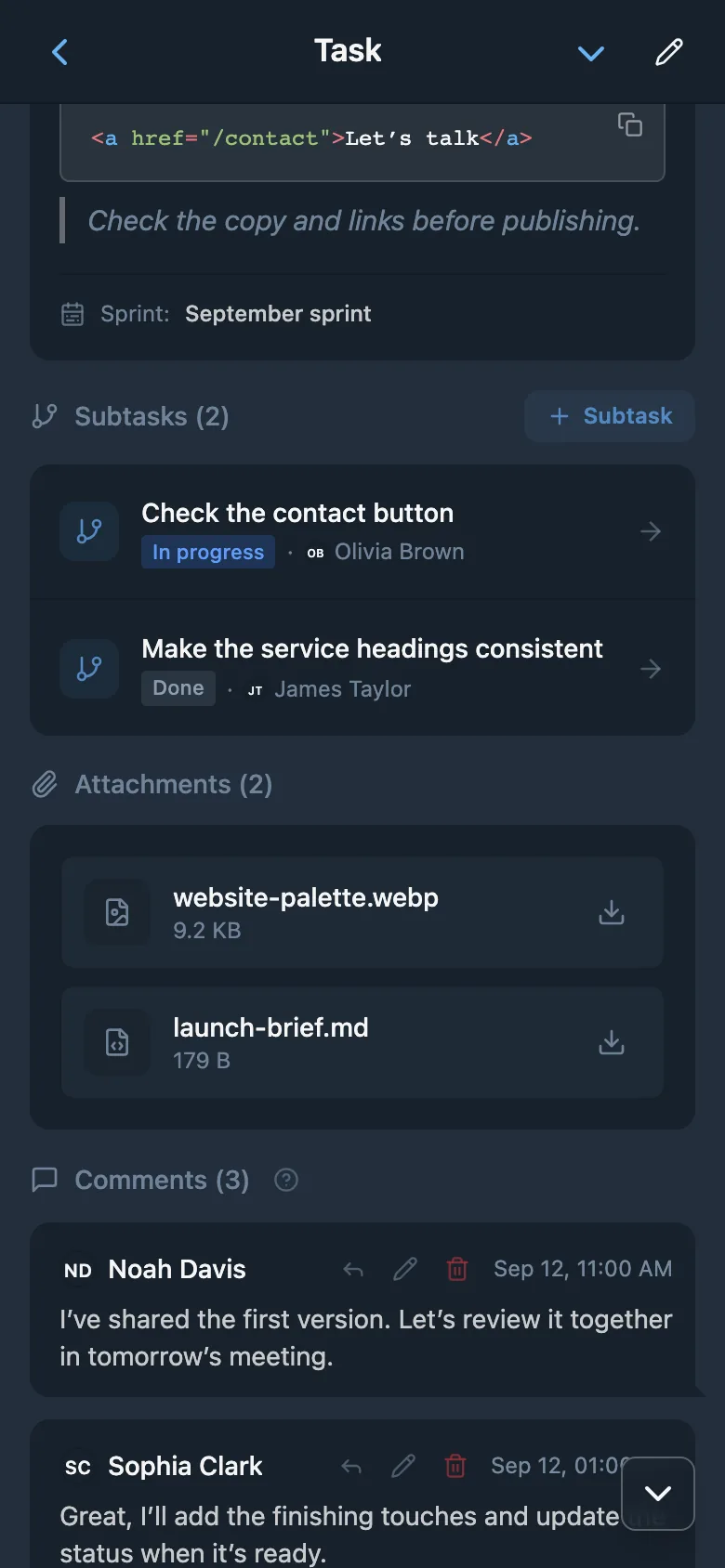
When you work on a task, the context around it matters. iTasks lets you attach any file type directly to a task: documents, spreadsheets, design files, logs, or archives. There's no need to jump to a separate file-sharing service - everything your team needs sits right next to the description.
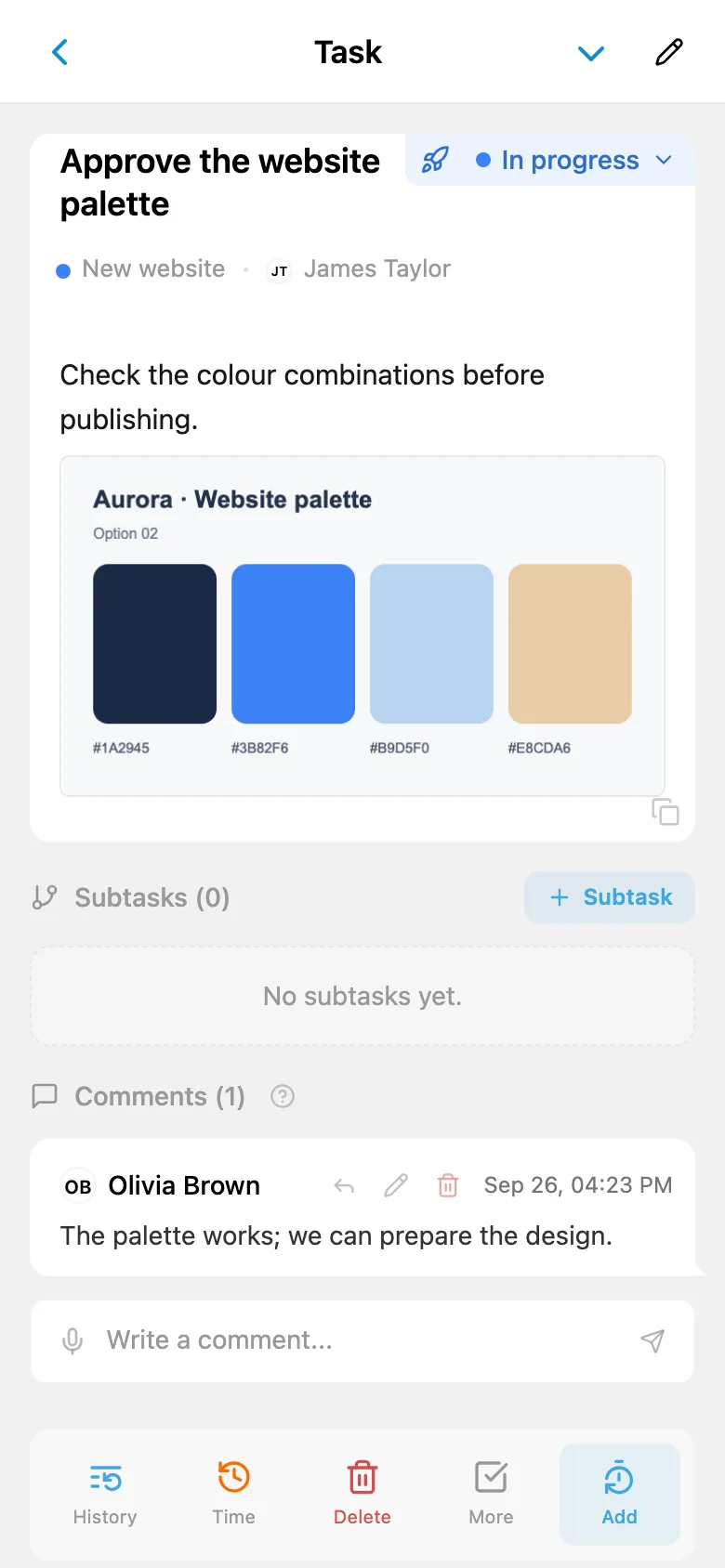
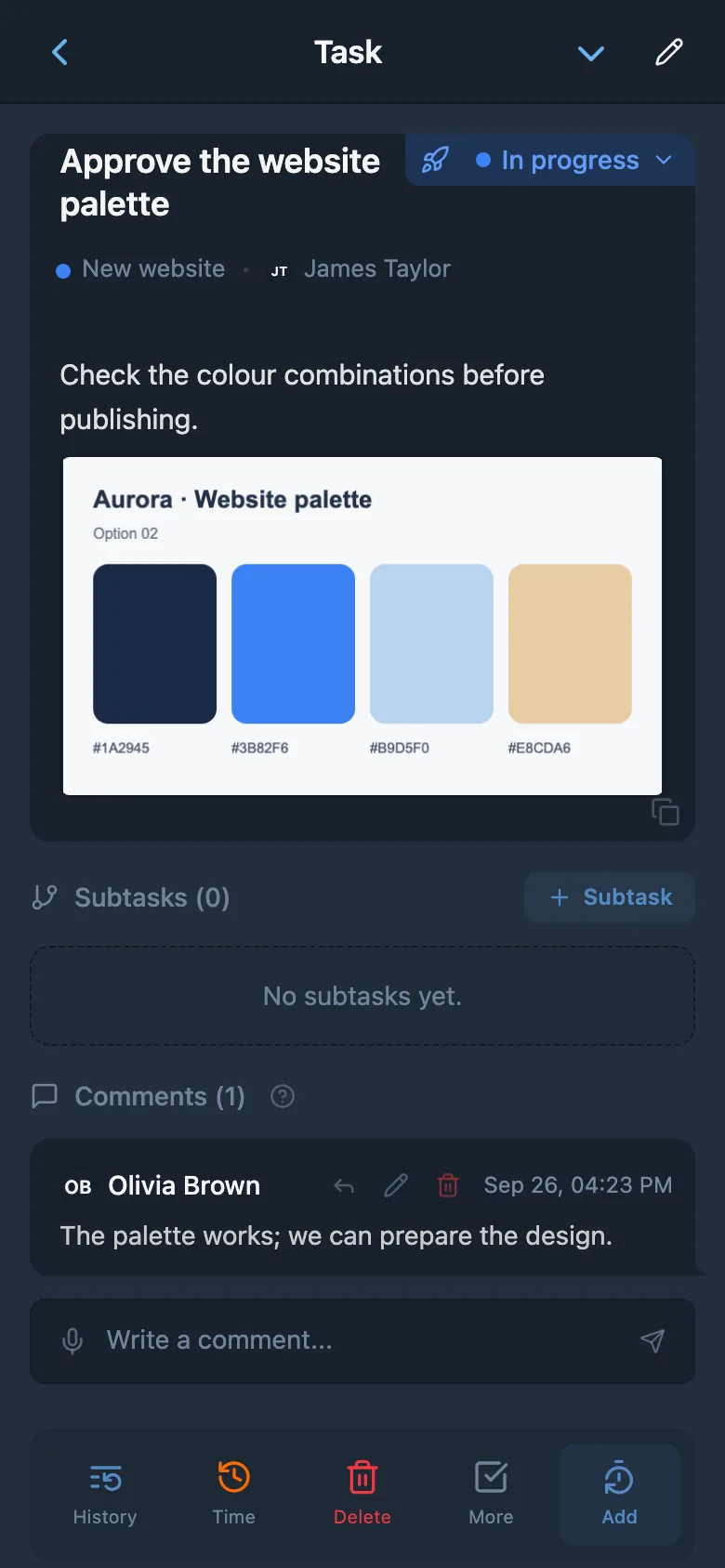
Images are even easier to work with. You can insert them inline in the task body, so screenshots, wireframes, and diagrams become part of the description instead of separate attachments. This is especially handy for bug reports: drop in a screenshot, annotate it, and the developer sees exactly what went wrong without opening another link.
Built-in Task Chat
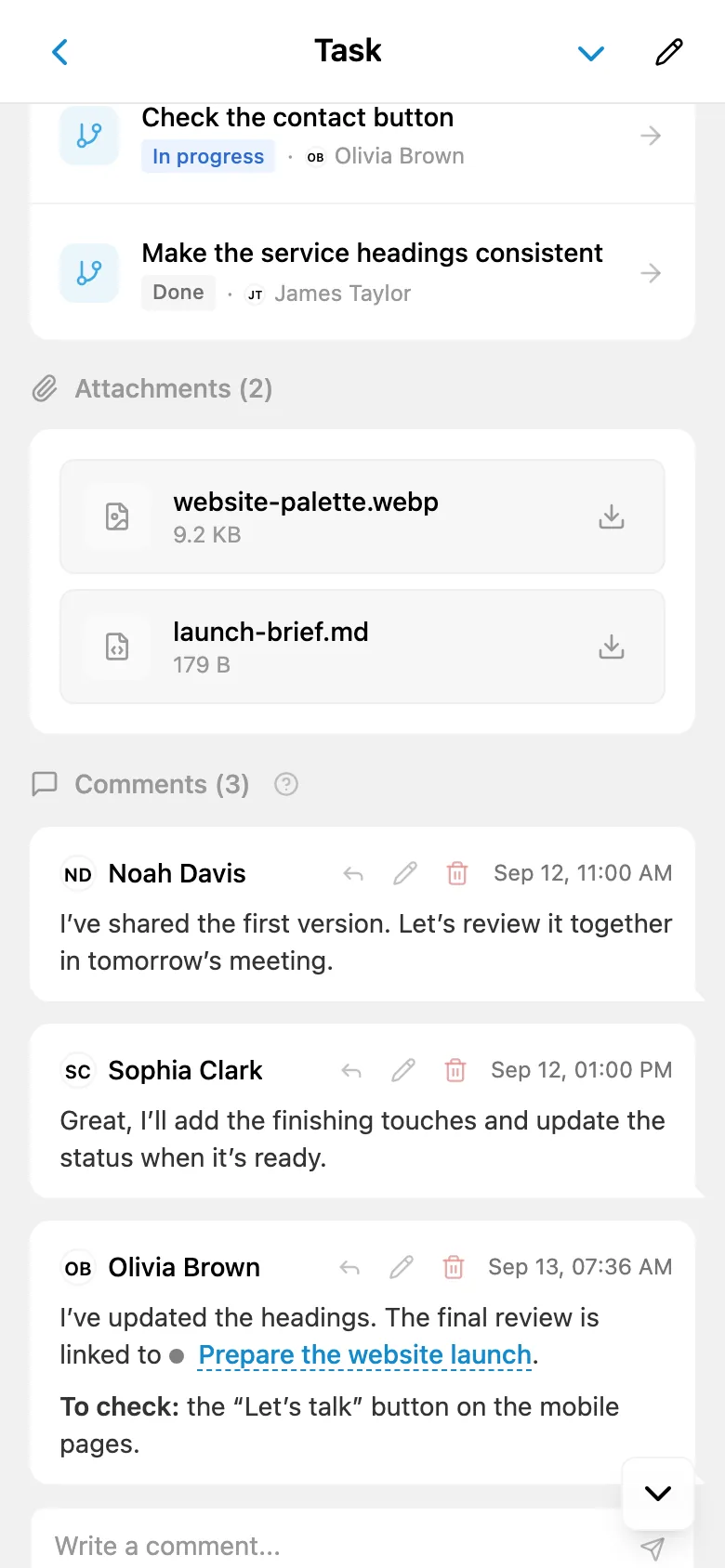
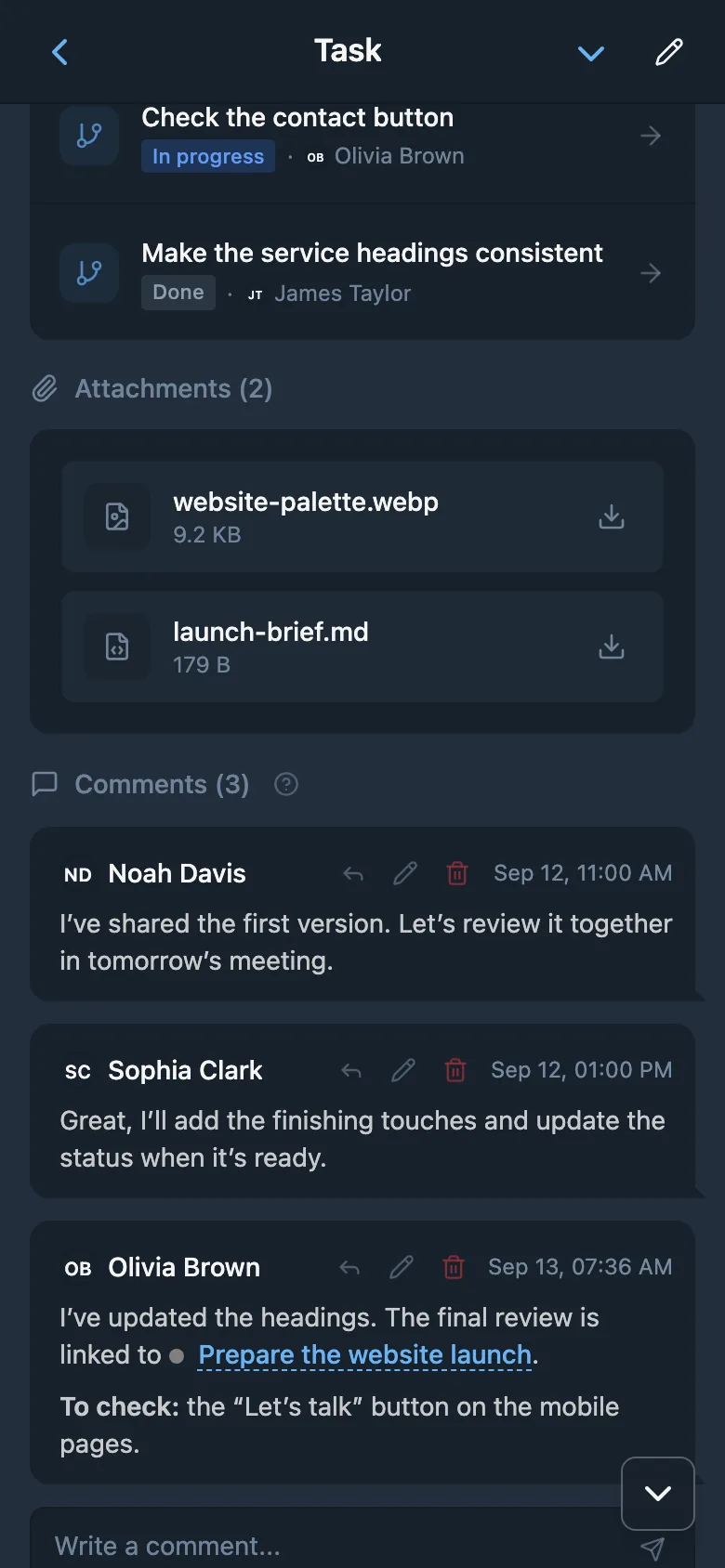
Almost any task raises questions, decisions, and feedback. That's why every task in iTasks has a full-featured discussion system - not just comments, but a real chat where all project members with task access can talk in real time. Every message supports the same rich formatting as task descriptions, including code blocks, inline images, and text formatting, so even technical discussions stay clear.
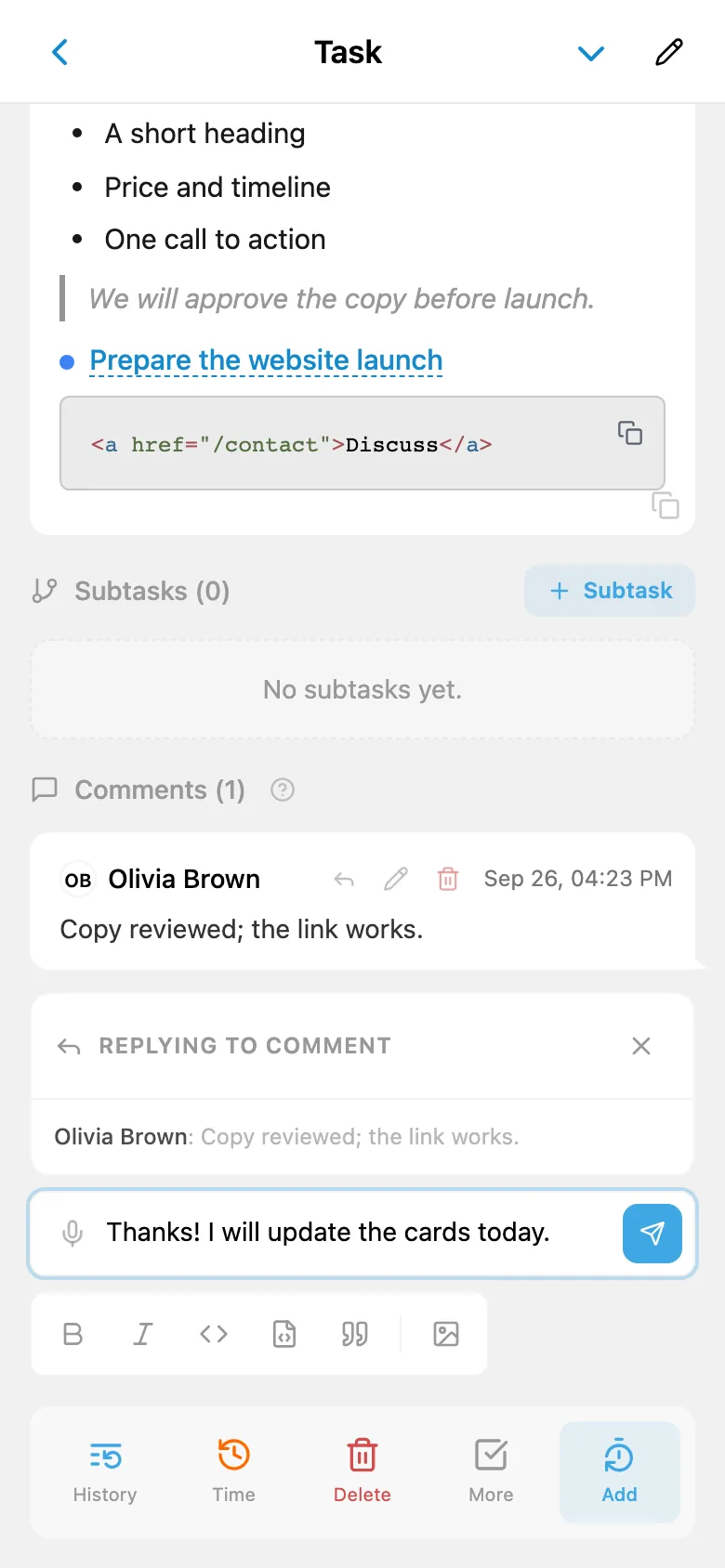
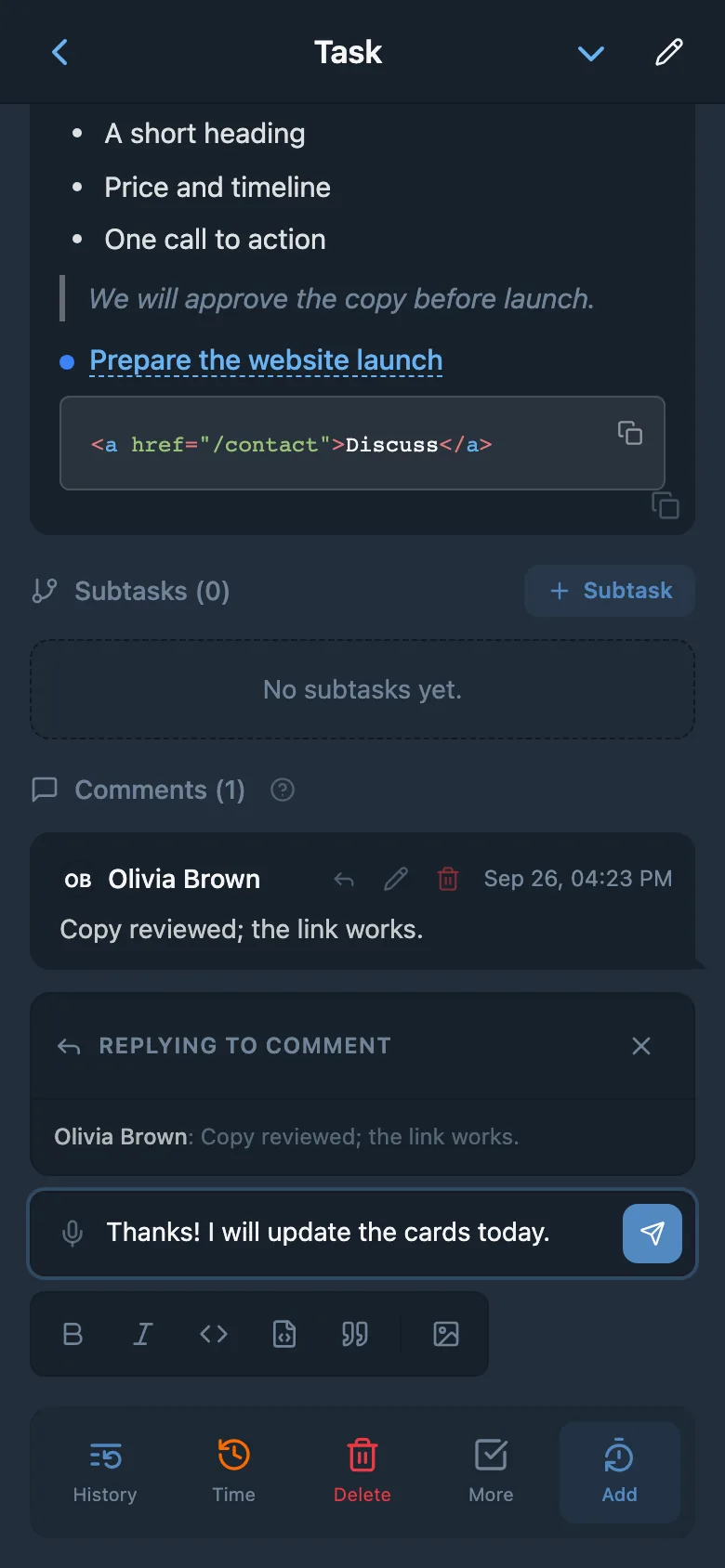
The Reply feature lets you quote any previous message - keeping conversation threads organized even in long discussions. Click the quote and the chat instantly scrolls to the original message, preserving context and saving you from manually searching for what was being referenced.
When someone posts a message, the task author, assignee, and watchers are notified instantly via Telegram, except the message author. Discussions stay fast, contextual, and always connected to the task they belong to.
This becomes even more valuable when a task started as a customer request. The connection with HelpDesk keeps the customer conversation and the internal task flow tied together without copying context between tools.
- Full chat system - all project members with task access communicate in a single thread
- Code blocks & images - share snippets and screenshots directly in the discussion
- Replies with quoting - keep context even in long discussions
- Jump to quote - click a quote to instantly scroll to the original message
Cross-Linking Tasks
In practice, projects rarely stand on their own: a bug in one can block a feature in another. iTasks lets you @-mention and link tasks across different projects in the same workspace. Reference a related task in a description or discussion message and it becomes a clickable link, so dependencies are easy to trace and the bigger picture stays clear.
Cross-linking keeps your team aligned without duplicating information. Instead of copying details between tasks, simply link to the source. Your team can navigate between related tasks in one tap, maintaining context and reducing miscommunication across projects and teams.
Assignees & Watchers
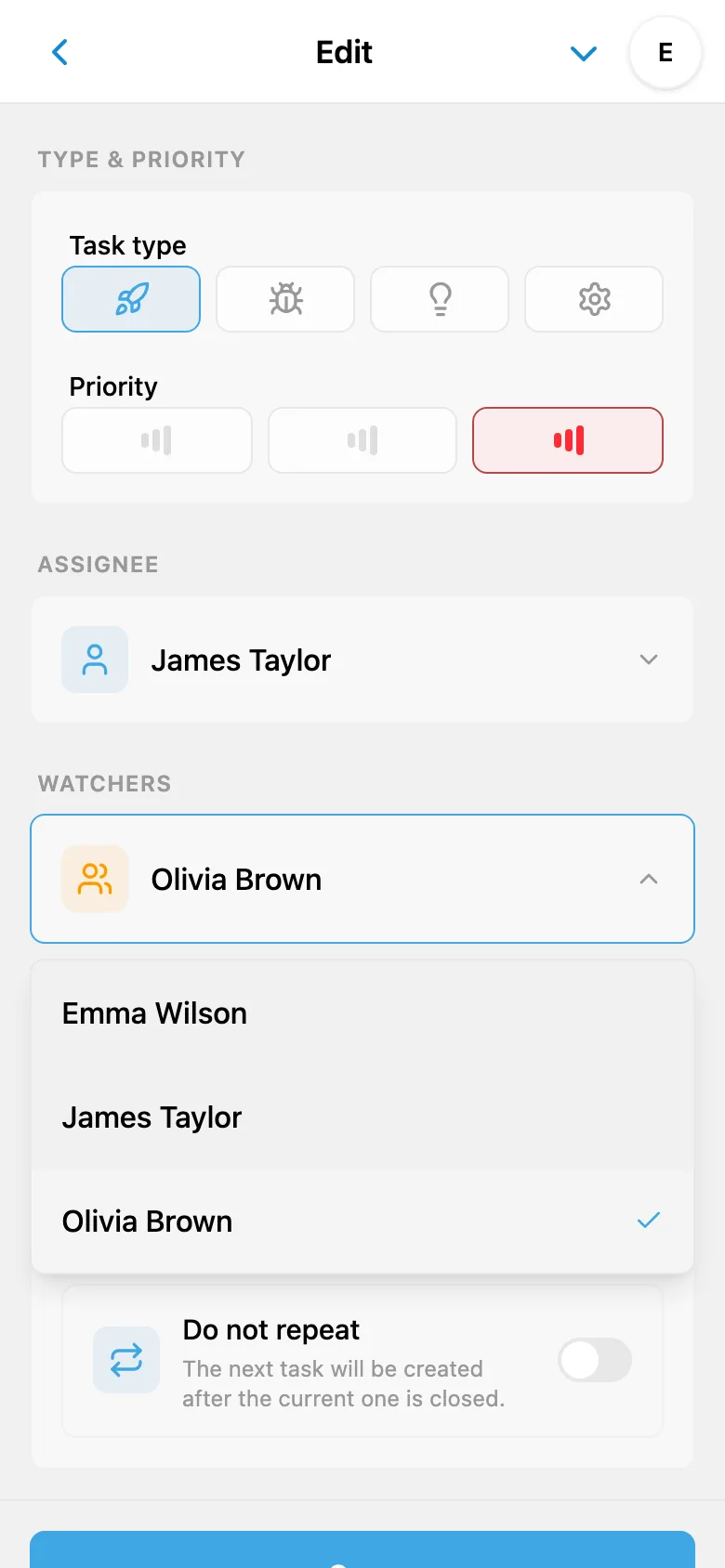
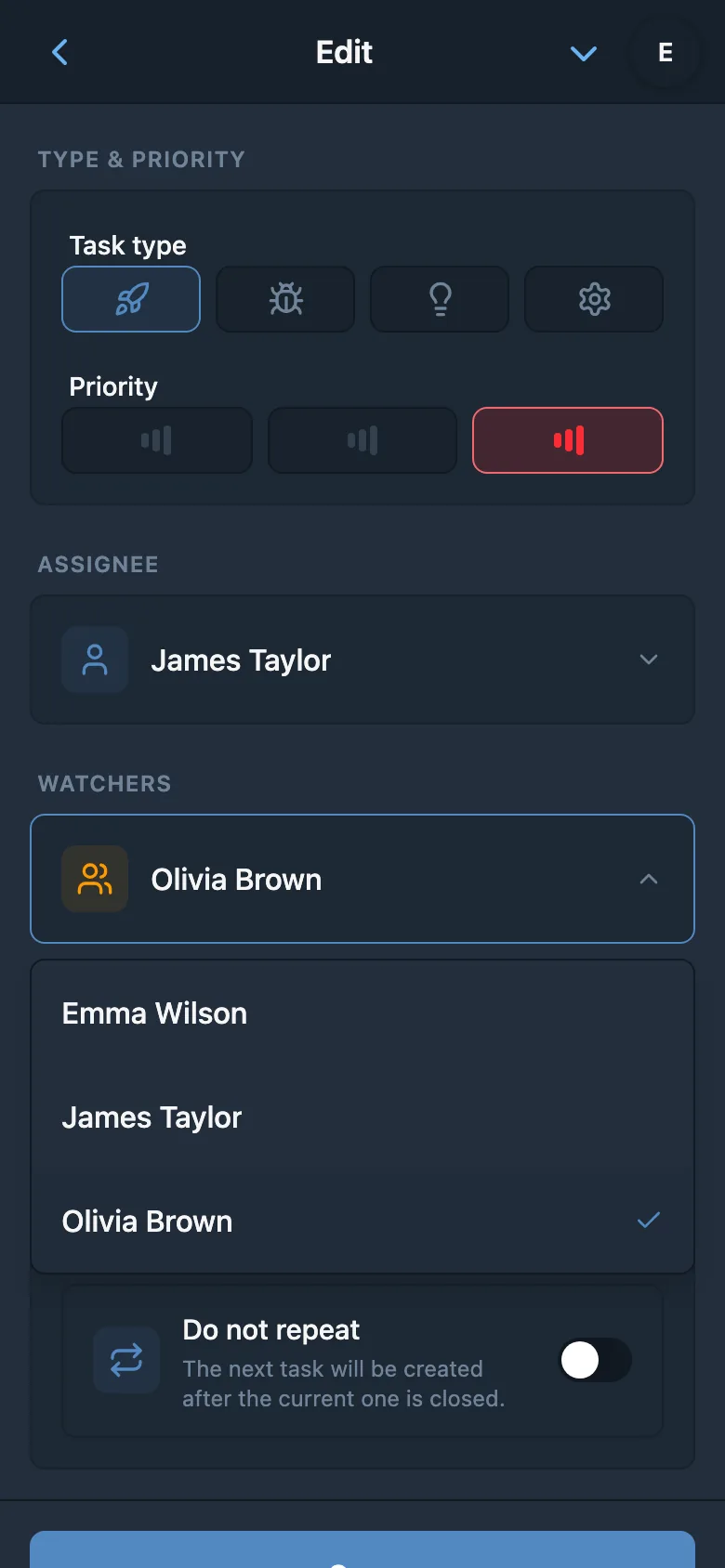
Every task needs a clear responsible person. Assign a team member as the task owner, and they will see it in their personal task list while due-date reminders go to them. All project members can see the project's tasks; watchers subscribe stakeholders, managers, or collaborators to work notifications without cluttering their assignments.
The notification system separates work events from due dates. Status changes and new comments go to the task author, assignee, and watchers, except the user who made the update; the task author is added as a watcher automatically. The assignee also receives assignment notifications and a dedicated reminder on the deadline day. Everyone who needs to follow the task stays informed without manual @-mentions.
Questions about task management
What task types are available?
iTasks supports 4 task types: Feature (new functionality), Bug (defect), Improvement (enhancement), and Tech (technical/infrastructure). Each type helps categorize and filter tasks. Owners and admins can change their names and icons and add up to 2 extra types, for a total of 6.
Can I create a task by voice?
Yes. Tap the microphone and dictate naturally. AI prepares the title and description and fills the due date when you state a clear deadline, for example “finish it by Friday.” The feature is available on Free and PRO within the plan's AI token allowance.
Can I create recurring tasks?
Yes. For regular work, you can repeat tasks by day, week, month, or year, set an interval, choose weekdays, select a month day or yearly date, and optionally end the recurrence on a specific date.
Can I use code blocks in tasks?
Yes! The rich text editor supports code blocks with syntax highlighting for popular languages, as well as JSON pretty-view for readable JSON display.
Does iTasks support sprints?
Yes. Projects can enable sprint mode to plan work in iterations on top of the shared project backlog. This is useful for teams that want a clearer cycle for planning, execution, and tracking.
Who gets notified about task updates?
Status changes and comments go to the task author, assignee, and watchers, except the user who made the update. The assignee also receives assignment notifications and a separate reminder on the deadline day.
Can I link tasks across projects?
Yes. You can @-mention and link to any task within the same workspace, even if it belongs to a different project.
What file types can I attach?
You can attach any file type to tasks. Images can also be inserted directly into the task description and discussion messages.
How does flexible project architecture work?
You can break larger tasks into sub-tasks (up to 4 levels deep), so work is easier to delegate and you can track progress part by part. Each sub-task remains a full task with its own assignee, status, and discussion.
Start managing tasks in Telegram
No sign-up required. Open iTasks and create your first task in seconds.
Get started freeExplore more features